Passbolt Password Manager (User Guide)
This blog post is part of the documentation knowledge base for the Elara Aerospace team.
This guide helps Elara Aerospace users get started and manage their credentials efficiently.
What is Passbolt?
Passbolt is a secure, open-source password manager designed for teams to store and share credentials safely.
Getting Started (Registration)
Receive Invitation
- Sign in Portal: https://passbolt.elara-aerospace.com/auth/login
- Use only your @elara-aerospace.com email address
- Check your @elara-aerospace.com email for an automated email invitation from the Passbolt administrator.
- The link is valid for a limited time. If expired, request a new one by signing in again.
- Ensure the email doesn’t end up in your Spam/Junk folder.
Set Up Passbolt
- Click the invitation link to start setup.
- Install the browser extension when prompted. This is required for Passbolt’s security features and autofill.
- Pin the extension to your browser toolbar for easy access.
Choose a Master Password (Passphrase)
- Create a strong, unique passphrase. This protects your encryption keys.
- The passphrase is never shared with the server and should be stored securely.
Stay secure! Never share your master password, and keep your recovery code in a safe, private location!
Download Your Recovery Code
- At the end of setup, download the recovery kit (recovery code).
Store this code in a safe place (such as an encrypted USB drive or offline storage) as it is essential for account recovery if access is lost.
Configure Anti-Phishing Token
- Select a color and three-letter security token.
This three-letter visual cue protects against phishing! Verify it each time (when you open up an Passbolt one-time login verification email) before you log into the legitimate Passbolt email/site.
Logging In
- Go to the sign-in page: https://passbolt.elara-aerospace.com/auth/login
- Use your Elara-Aerospace email address.
- After entering your credentials, you will receive a login email to verify the login attempt.
- Enter your master passphrase in the browser extension.
Adding and Managing Passwords
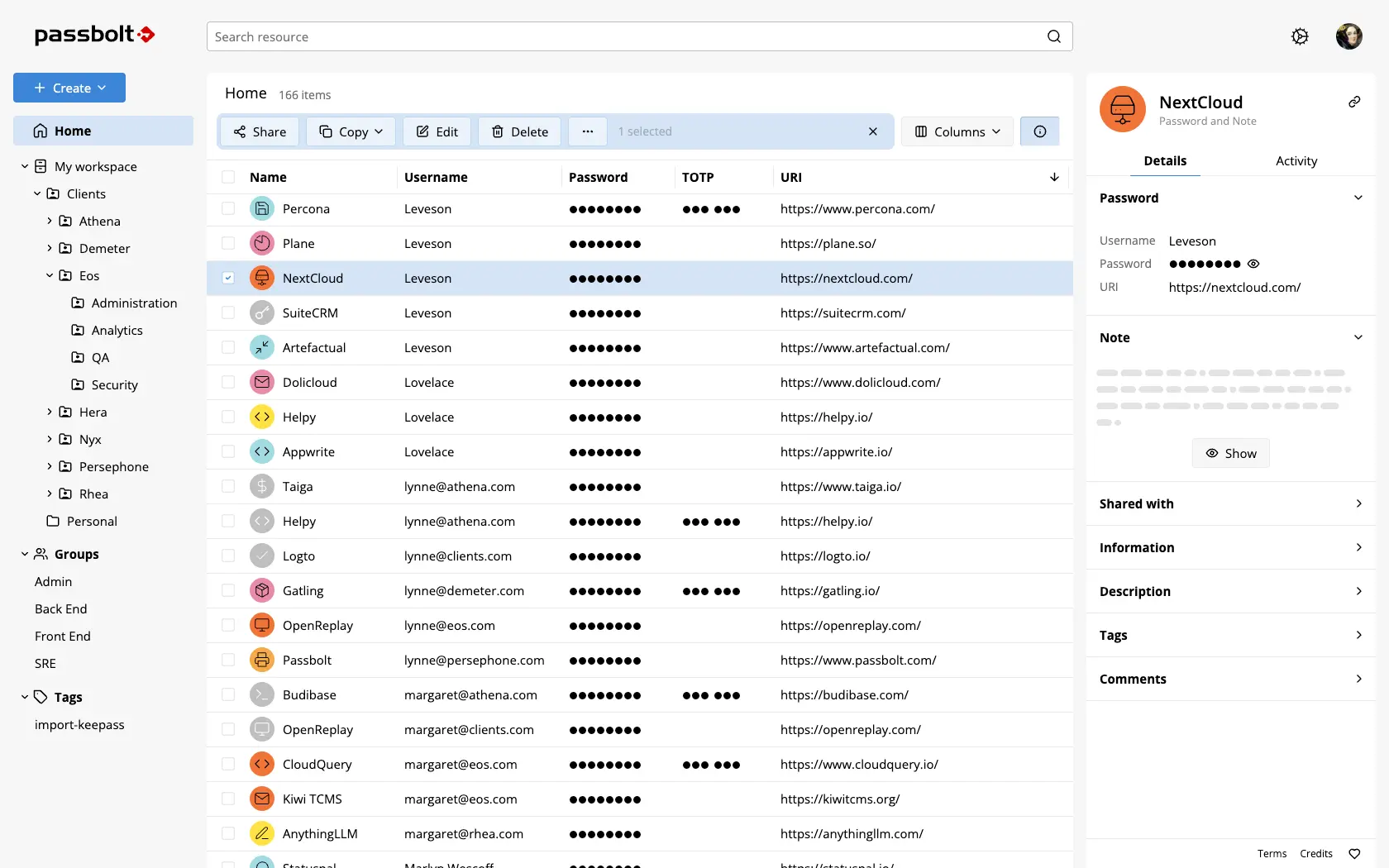
- Once logged in, access your user workspace to view, create, and share credentials.
- To add a password:
- Click “Create password” in your workspace.
- Fill in:
- Name, Username, and Password (optionally URL, Description, and TOTP).
- Save to store the credential securely.
- Pro Tips:
- Use the eye icon to view passwords.
- Use the magic wand to generate strong random passwords.
- Double-check password complexity rules for services.
Troubleshooting & Support
- If an action doesn’t work, contact your Passbolt admin. Internal policies may restrict certain features.
- For more guidance, consult the official Passbolt User Guide or the admin team at Elara Aerospace.
External Resources
- Official Documentation: Passbolt User Guide
Feedback & Support Author
Suggestions for improvement? Feel free to send Suriyaa your feedback via email.
Donate to both authors with Bitcoin Lightning: